Manage License
You can change the license key used by Routesy at any time. This is useful when you upgrade your plan, receive a new license key, or need to switch between accounts.
How to change your license
- Open Settings (
Cmd+,) - Navigate to the About tab
- Click the Manage License button at the bottom
- Enter your email and the new license key in the activation dialog
- Click Activate
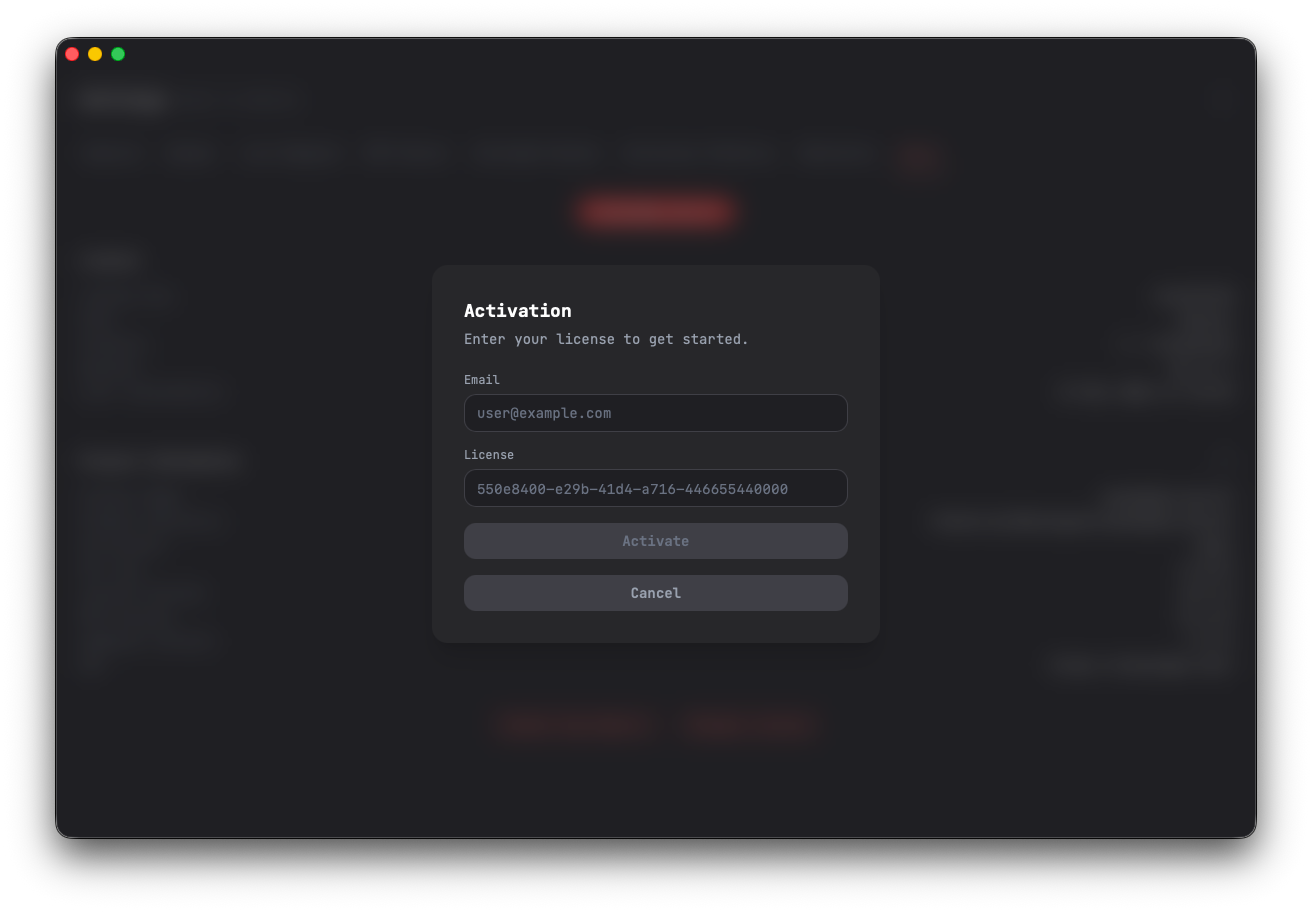
The new license will be validated against the server. If activation succeeds, the previous license will be replaced and the app will reflect the new tier and its capabilities immediately.
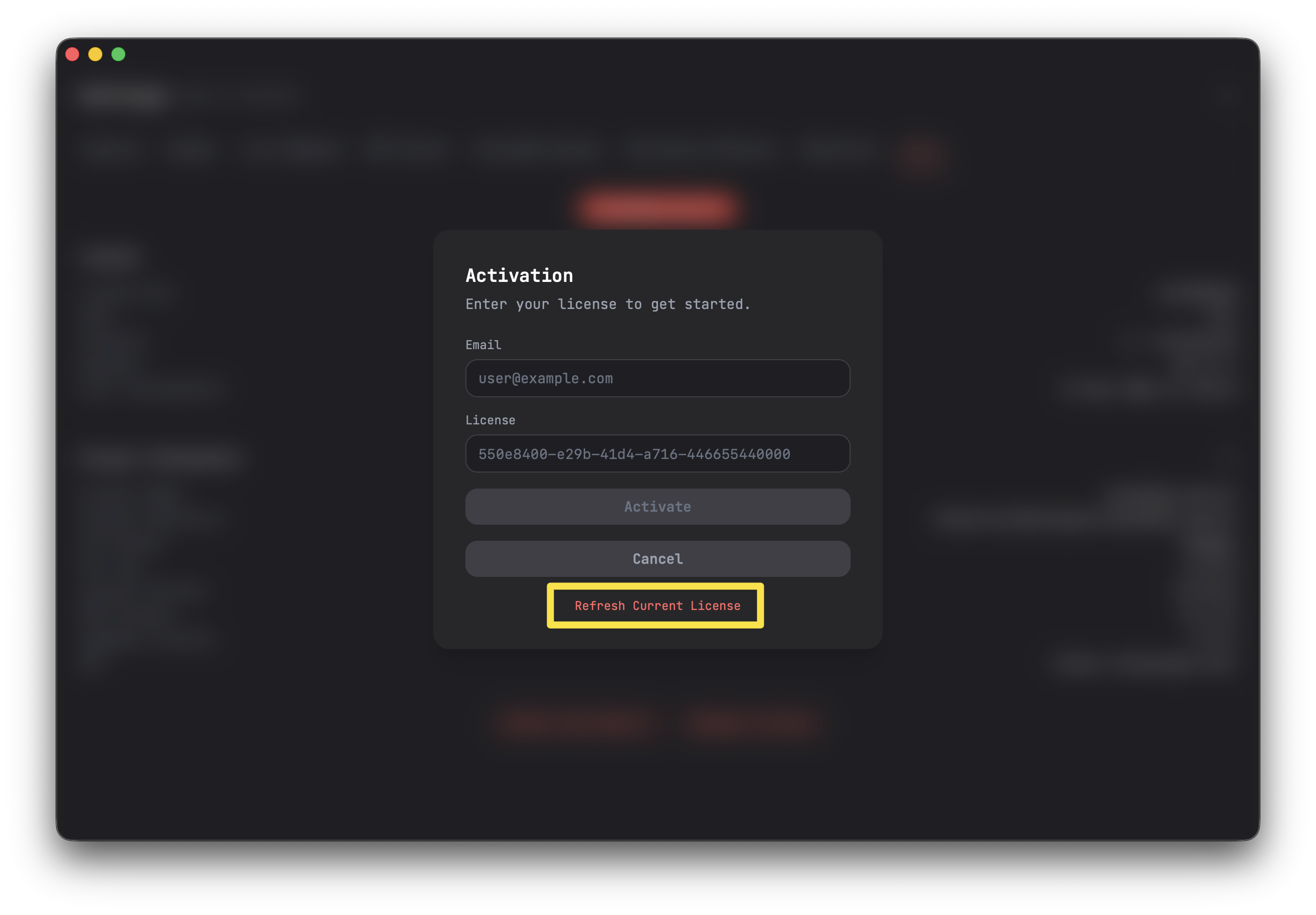
If you already has a license active, the dialog will show an option to allow you to refresh your license. This is useful when, for example, the Routesy team release a new feature for your current tier and you want to unlock it without having to wait your scheduled license refresh date.
When to use this
- Upgrading your plan — After purchasing a higher tier (e.g. from Free to Pro), enter the new key to unlock additional features like Live Request, MCP Server, or Hidden Sync
- Switching accounts — If you have multiple Routesy accounts, you can switch between them by activating a different license key
- Troubleshooting activation issues — If your license becomes invalid or expired, re-entering the key will attempt a fresh activation
Dashboard
You can view and manage all your licenses, including active devices, from the Routesy Dashboard. From there you can also deactivate devices remotely if you reach your device limit.